Mode: Mobile Scanning
With Mobile Scanning, you can connect to a phone or tablet and use its camera to scan documents, take photos, and send files directly to Jira.
No app required, just a modern web browser. All data is transferred locally using WebRTC. The device must be on the same local network as the PC accessing Jira/WDIScan.
Connecting
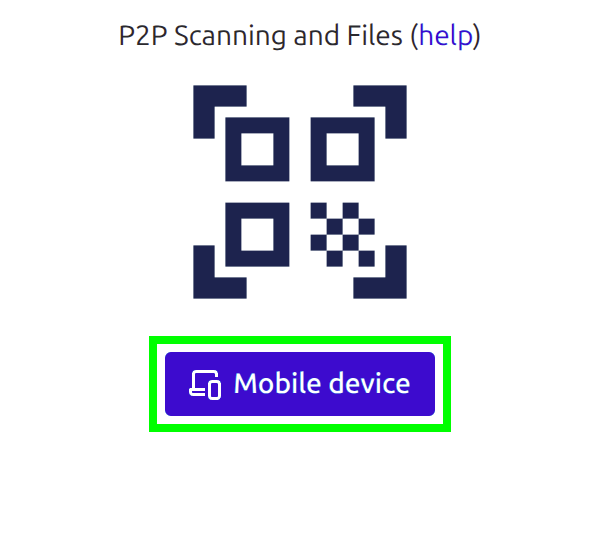
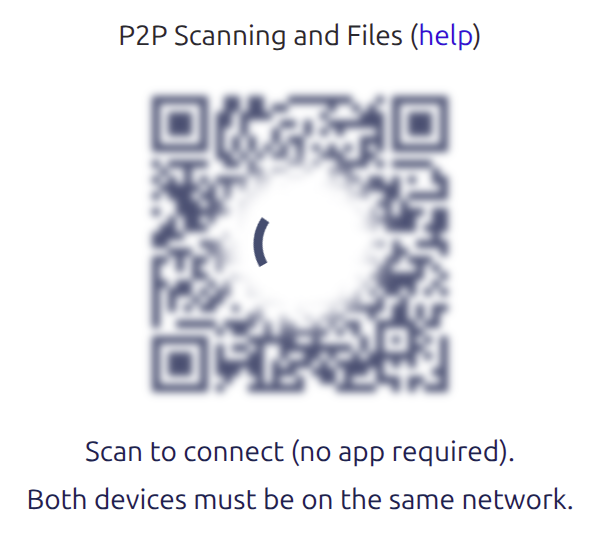
On the WDIScan dialog click "Mobile device" on the right side, then scan the generated QR code and open the link to connect:
Scanning
After connecting you have two options, "Use Camera" and "Send Files":
![[desktop] P2P scan connected](/ca/196610/ff73b4a2-2296-4973-a4ca-e4185ca6ae54.png)
![[phone] P2P connected](/ca/196610/ae292387-f3fe-45bb-8046-d952d333ccca.png)
Use Camera
To start scanning click "Use Camera" and authorize it (if asked). The camera has 3 modes:
Paper, with perspective correction and automatic image enhancements (best for documents);
Image, with perspective correction only (preserves colors);
Photo, normal photo (unprocessed);
In Paper/Image mode you will see an yellow outline on the detected paper:
![[phone] P2P camera scanning a document](/ca/196610/f95721e8-9173-406a-afbf-e3458cdd60b9.png)
Tap the camera button to capture. Any photo is immediately sent to the connected PC.
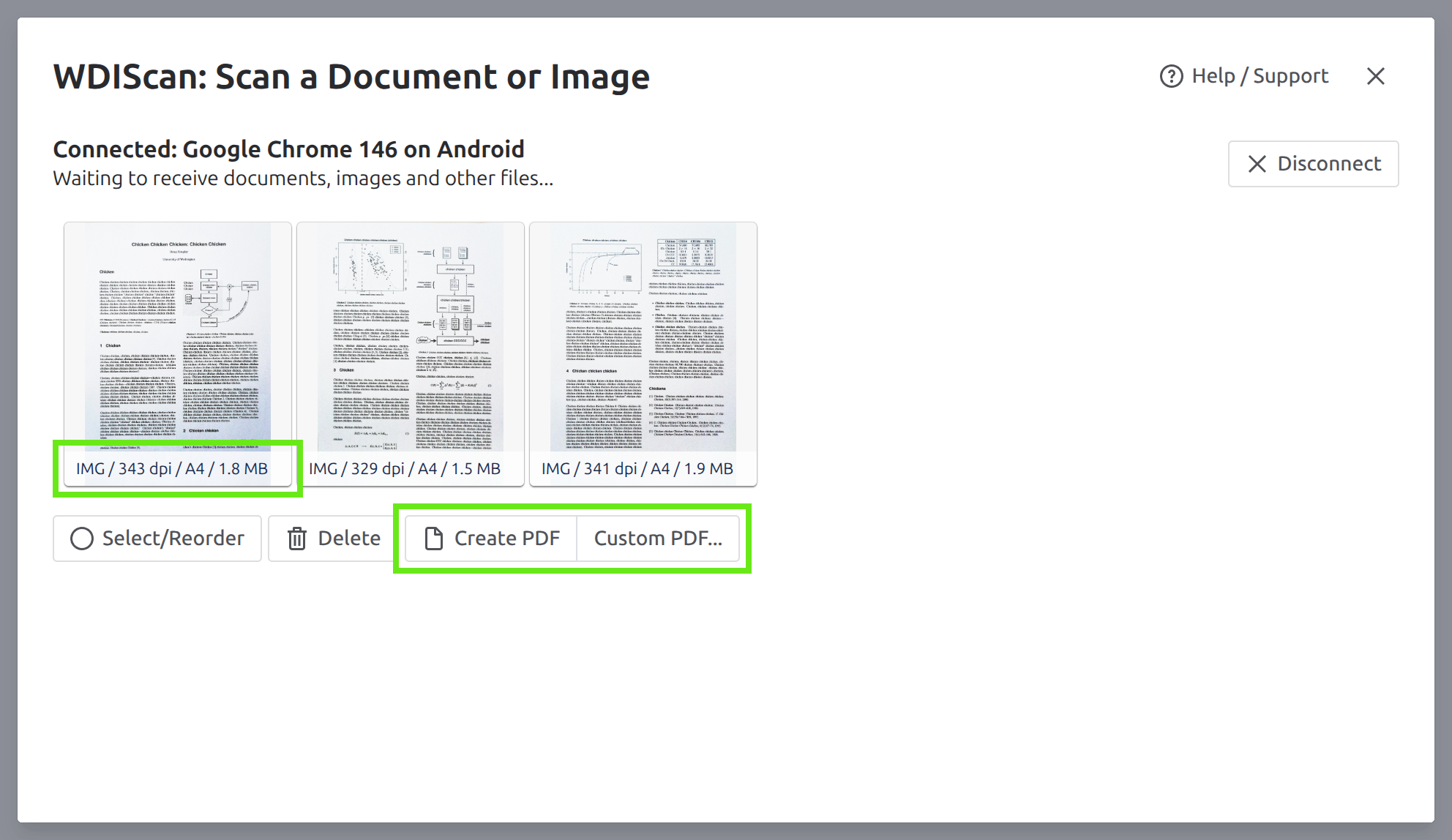
On the PC, you can create PDFs from the scanned images. Check that the correct paper size was detected (A4, US Letter or US Legal) on each page, and click "Create PDF". Only images from the Paper/Image mode can be used to create PDFs.
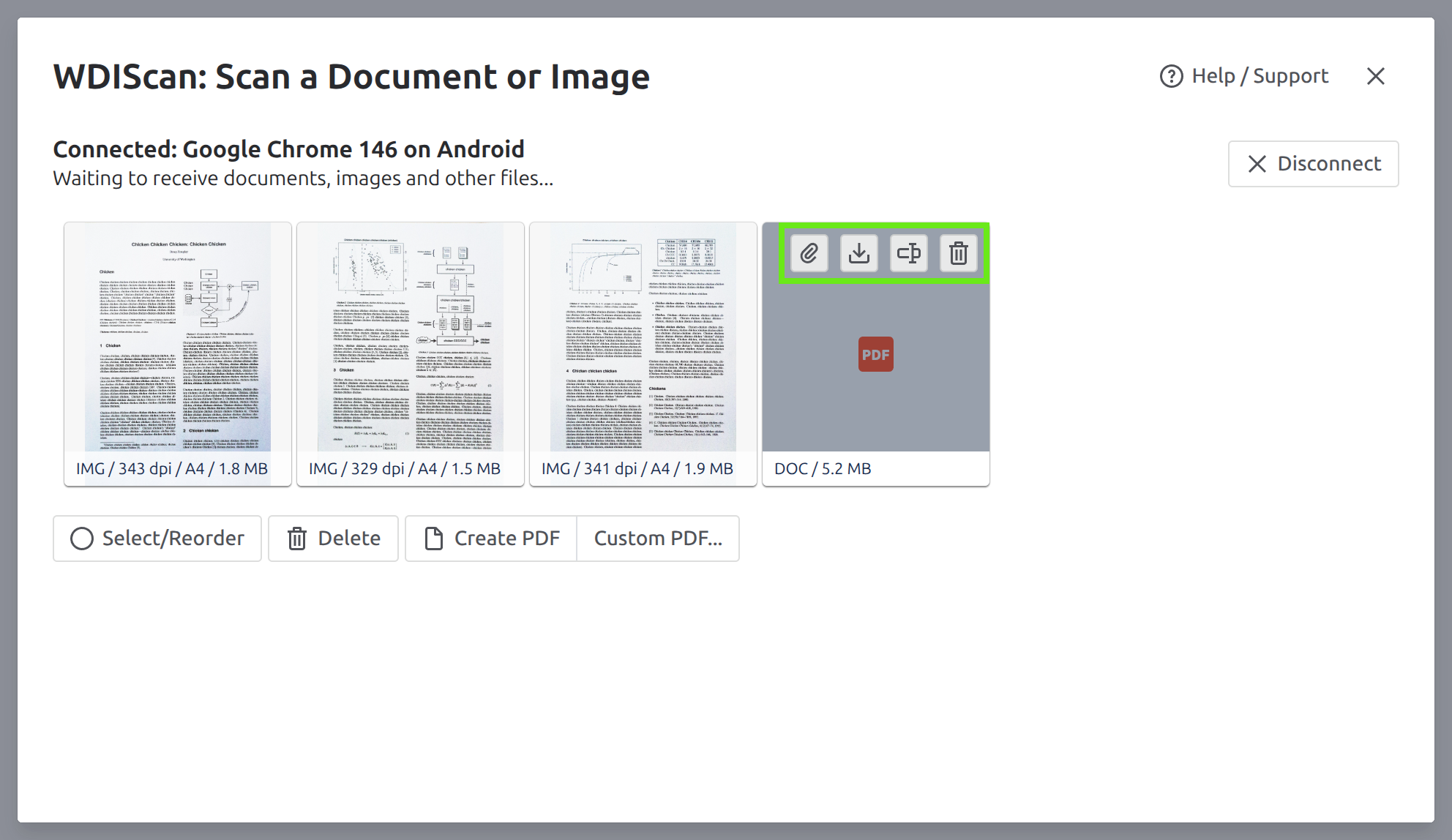
At any point you can attach the scanned files to the current Jira issue, any files not saved will disappear once the dialog is closed:
Send Files
This is an extra feature for transferring any files from the device to the PC.
Click "Send Files", select the files to transfer and wait for them to appear on the PC. You can then attach the files to the current Jira issue, or download them.
Lost Connection
If the connection to the device is lost, you will need to scan a new QR code to reconnect.
Compatibility
This mode uses of some of the latest web features, specially while using the camera and taking photos, these features might not work perfectly on all browsers/devices, please report any problems. We are working to make this mode more stable and widely supported, but we are always limited by each particular browser/device implementation.
Known Issues
On some devices, the camera's preview image might be slightly different from the final photo;
In some conditions, the camera focus might appear unstable (point the camera elsewhere to re-focus, better lighting can also help);
Future Improvements
Better focus control (manual/automatic);
Photo resolution selector (quality selector);
Photo aspect ratio selector;
Flash (not widely supported by browsers yet);
We will work on adding these and other improvements in the future, as they become possible.
Contact us with any issues or questions.