Zadig on Windows
Installing WinUSB drivers
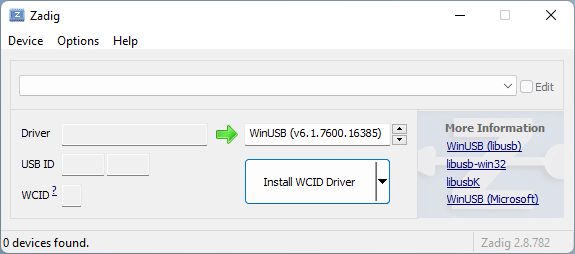
Download and run the free tool Zadig:
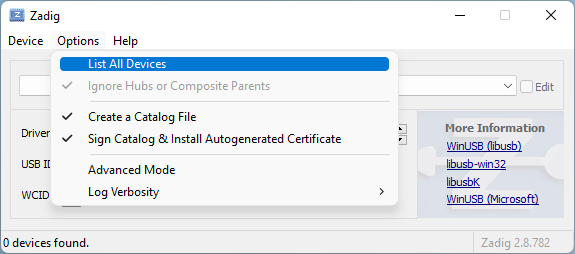
Your scanner will probably not be listed on the dropdown, click "Options" then "List All Devices":
Now look for your scanner on the list, it will have multiple interfaces, look for all that have "(NONE)" as the driver. Select "WinUSB" as the new driver and click "Install Driver":
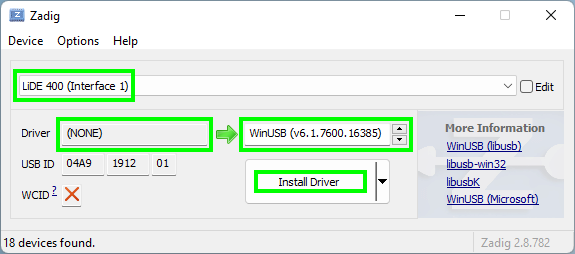
Do this for all interfaces of your scanner that have "(NONE)" as the driver.
Reopen WDIScan and try connecting.
If you still can't connect, replace the driver on the other interfaces. This will most likely prevent the scanner from being used with other programs (this process can be easily be reversed later if necessary, see next section).
Go back to Zadig and look for the other interfaces that already had a driver installed, e.g. "usbscan", select "WinUSB" as the new driver and click "Replace Driver":
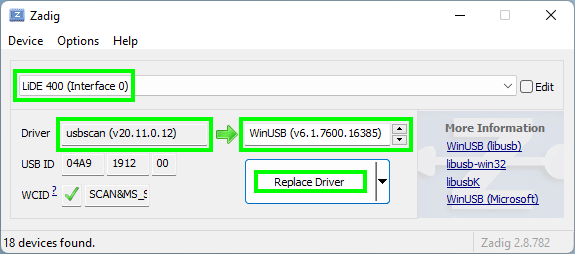
Do this for all those interfaces.
Reopen WDIScan and try connecting, it should now work.
Reverting back to the original drivers
To remove the installed drivers open the Device Manager and look for your scanner under "Universal Serial Bus devices":
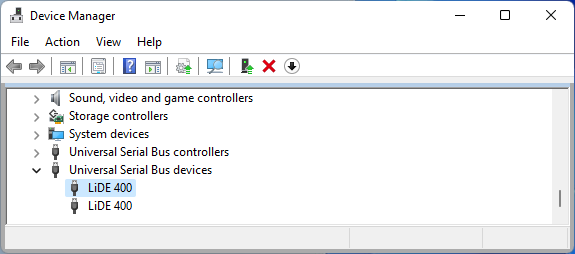
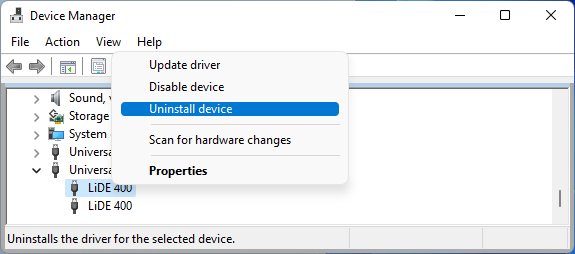
Right-click each one and click "Uninstall device":
Select "Attempt to remove the driver for this device" and click "Uninstall":
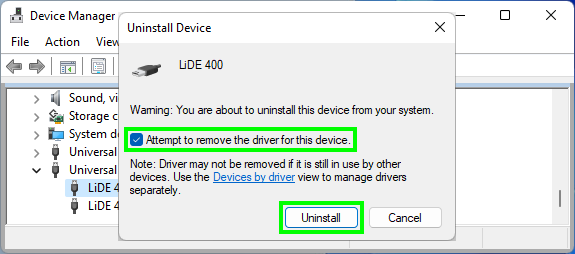
Do this for all of your scanner entries.
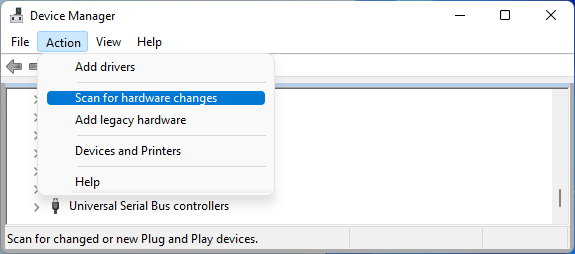
Click "Action" then "Scan for hardware changes" to let Windows scan and reinstall the default device drivers: